Guide
How to book a bay
We walk through each screen in order — bay, time, account, and payment — so you know what’s coming next.
Opens the Trackman booking site in a new tab.
What you’ll need
- A Trackman account (free to create — required before you can pay)
- An email address you can access right away (confirmations and your bay code are sent here)
- A credit or debit card, Apple Pay, or Google Pay
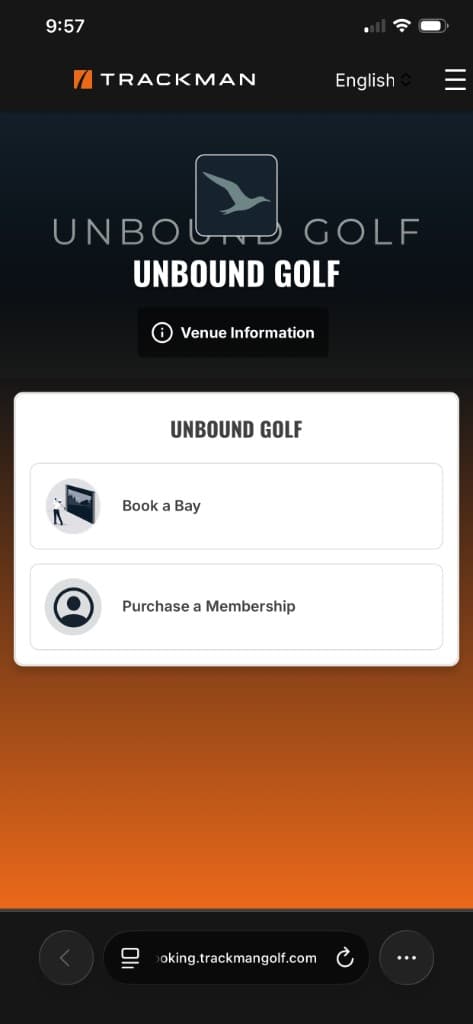
You don’t need an Unbound Golf membership to book. Anyone can reserve an Open Bay or Private Bay during public hours.
Choose your bay type and players
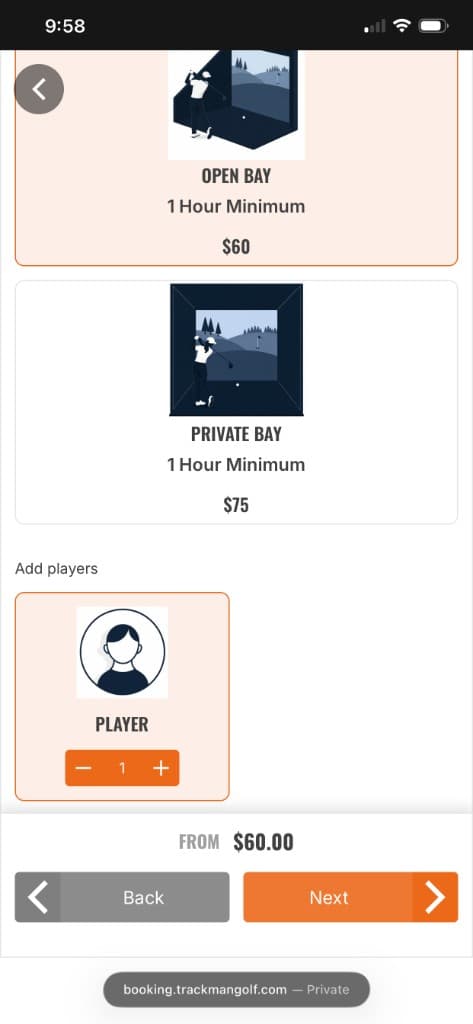
Pick Open Bay ($60/hr minimum) or Private Bay ($75/hr minimum). We have four Open Bays in our shared lounge and one Private Bay in a separate room.
Set the number of players, then tap Next. The player count is for seating planning, not a strict limit. Pricing is per hour, not per person — bringing friends doesn’t cost more.
Pick your date and time
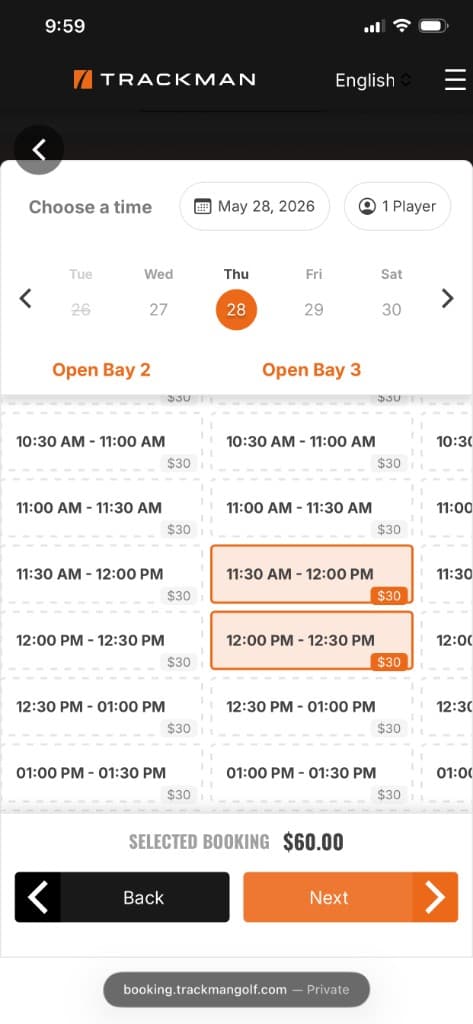
Choose a date from the calendar strip, then scroll sideways to pick your bay (Open Bay 1 through Open Bay 4).
Tap consecutive time slots to build your session. Non-members have a 1-hour minimum (two 30-minute slots), then can add 30 minutes at a time. Members can book a 30-minute session. Selected slots appear in orange. Tap Next when you’re ready.
Create or sign in to your Trackman account
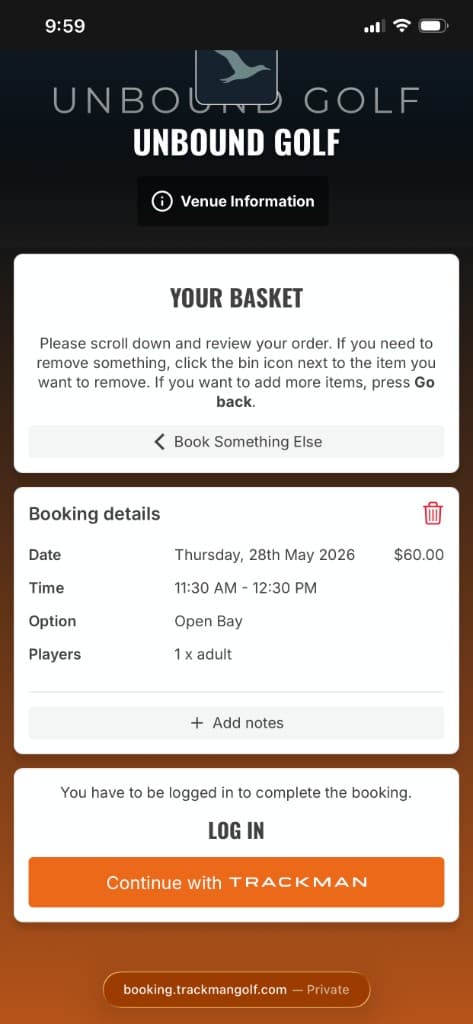
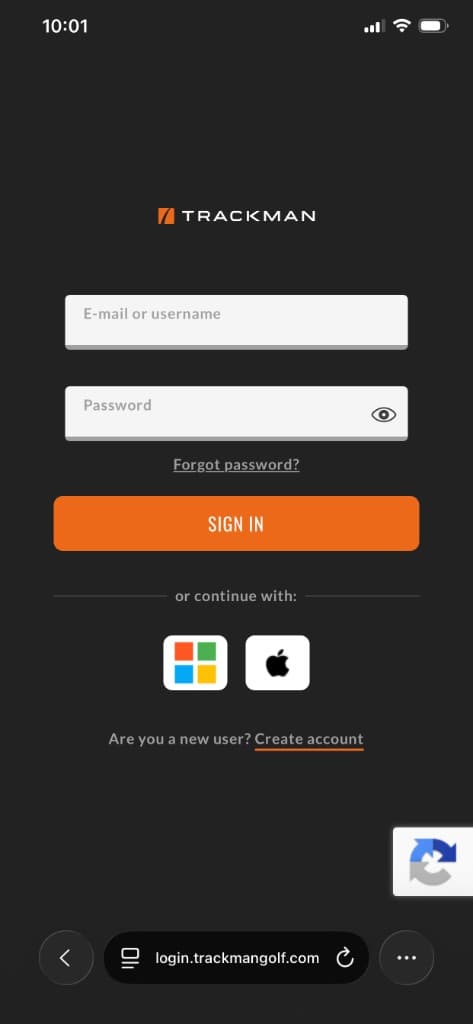
After you review your basket, tap Continue with TRACKMAN. Sign in if you have an account, or tap Create account, then Sign up with email to set one up.
Trackman sends a verification email — tap Verify your email before returning to checkout. Stuck? See Common questions below.
Accept terms, apply a promo code (optional), and pay
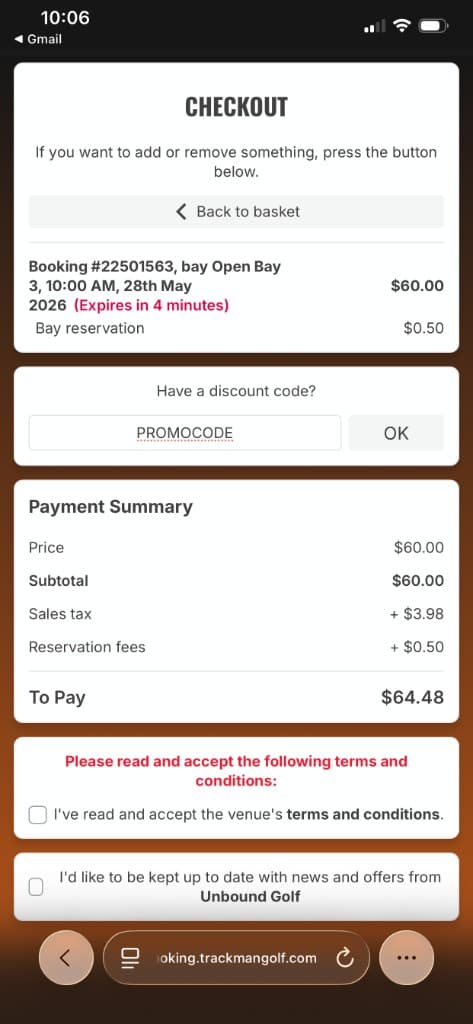
Review your booking summary, accept the venue terms, and enter a discount code if you have one — paste it into the promo field and tap OK. Codes can’t be added after checkout.
Payment options appear once the terms are checked. Trackman handles payment securely; we never see your card information. Your booking timer may show a few minutes to finish — don’t leave the page mid-checkout.
Check your email for confirmation and your codes
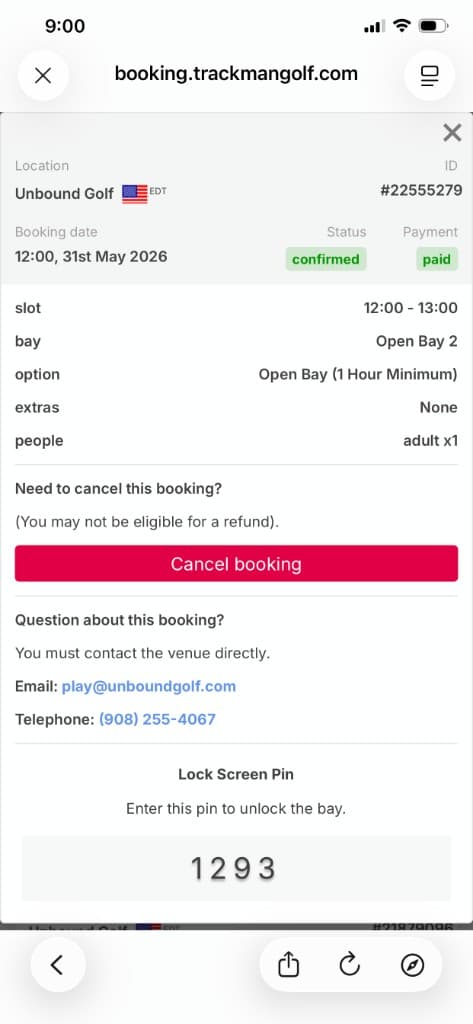
After you pay, check your email for a confirmation with the date, time, bay, and a bay code to unlock the simulator. During public hours, enter that code at your bay.
Member-only bookings (Daily · 6am–10am) are self-serve. That email also includes a door code for the entrance. Use the door code, then the bay code at your simulator. Staff is on-site during public hours, but support is always available.
Common questions
I’m booking before 10am
Slots before 10am are members only and self-serve. Your confirmation includes a door code to enter the building and a bay code to unlock your simulator. Staff is on-site during public hours, but support is always available.
Trackman says my email isn’t confirmed
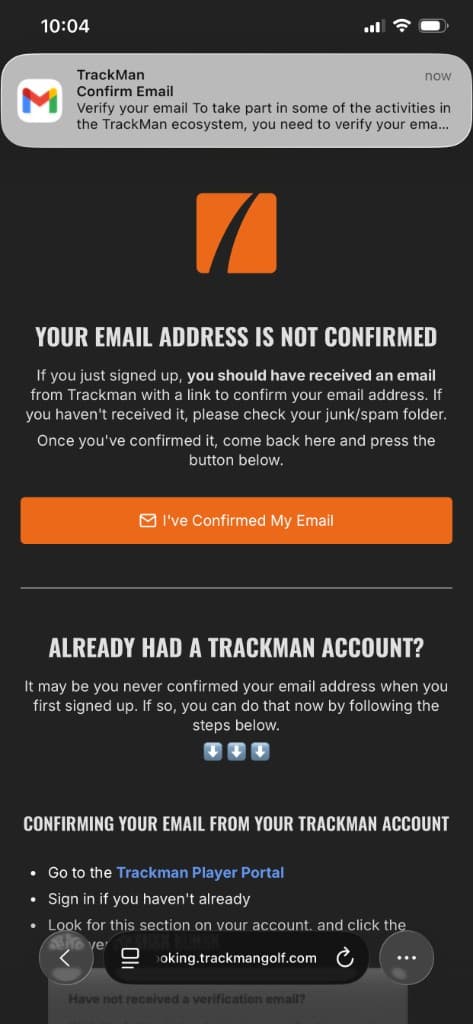
After creating your account, Trackman sends a verification email. Open it and tap Verify your email, then return to checkout and tap I’ve Confirmed My Email. Check spam if you don’t see it within a minute or two.
I didn’t get a confirmation email
Check your spam or promotions folder first — Trackman emails come from a no-reply address and can get filtered. If it’s truly missing, call us at (908) 255-4067 and we’ll help.
Can I cancel my reservation?
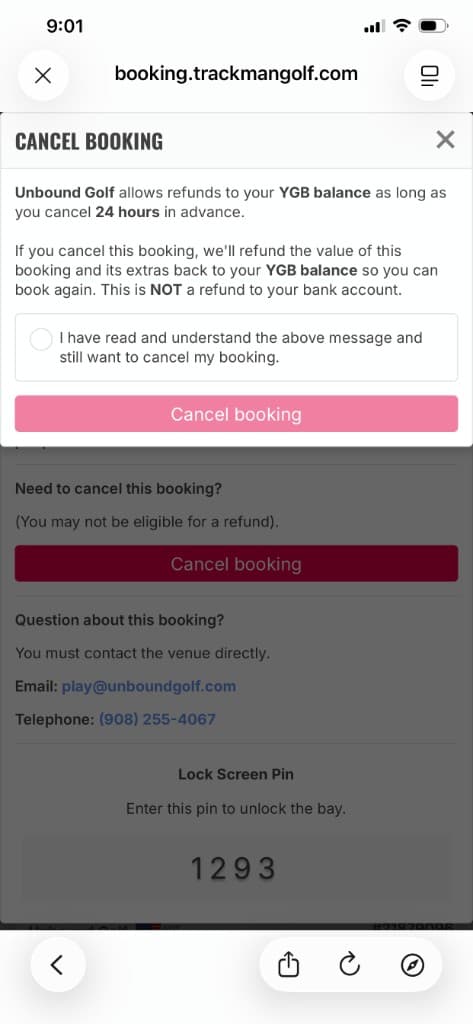
Yes — but you can’t modify an existing booking. To change your date or time, cancel and rebook. Open your Trackman account in the Trackman app or at booking.trackmangolf.com/account/bookings. Cancel at least 24 hours before your session and the amount goes back to your YGB balance — facility credit, not a refund to your card. When you re-book, you’ll see the option to pay with that credit at checkout. With less than 24 hours’ notice, the booking fee is not refunded.
Need to cancel outside that window or have special circumstances? Call us at (908) 255-4067 and we’ll help.
Still stuck? We’ll book it for you
Call us at (908) 255-4067, email play@unboundgolf.com, or stop by the front desk and we’ll book it with you.